



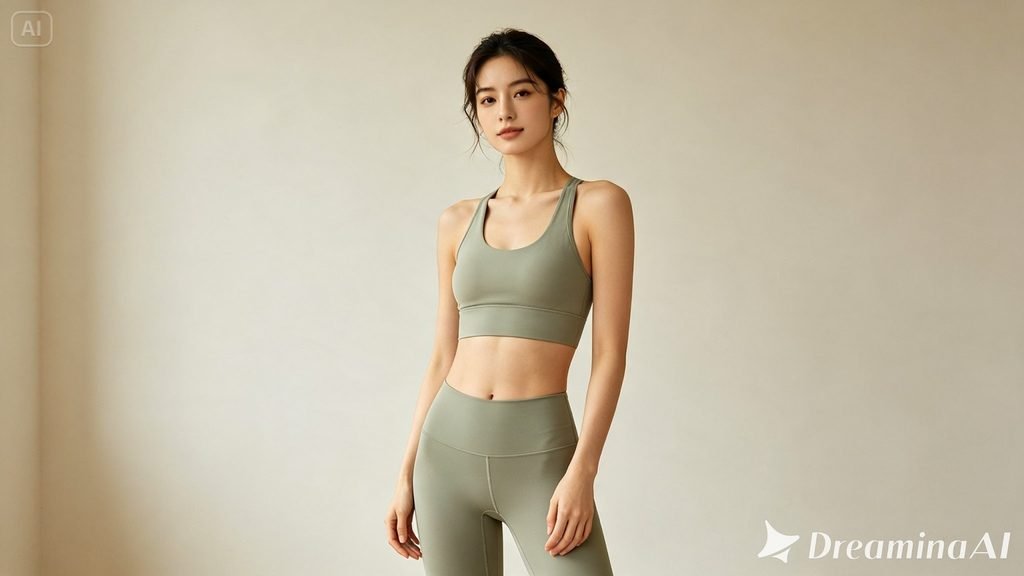
Dance content has dominated social platforms for years, but not everyone has the time, space, or confidence to film themselves learning a trending routine. Image to video technology offers a surprisingly fun workaround: turn a single photo into a genuine dance clip without ever stepping in front of a camera to move.
Dreamina, powered by its latest and most advanced video generation model, Seedance 2.5, takes a still photo and generates convincing, rhythmic motion that turns anyone into a dancer, at least on screen.
Considering how the dance will read without sound
Many viewers watch social videos with the sound off by default, so a dance clip that reads as rhythmic and engaging purely through visual movement tends to perform more consistently than one that depends entirely on an accompanying soundtrack to make sense.
Why dance content keeps winning on social platforms
Dance videos succeed because rhythm and movement are instantly readable, even without sound. A viewer doesn’t need context to enjoy watching someone move well, which makes this format one of the most universally engaging types of content across nearly every platform and audience.
How to tell if an AI dance video is realistic
A few differences make the difference between an AI dance video that looks fluid and one that is stiff and mechanical.
- The motion is in sync with the sound instead of being random.
- The shift in mass and orientation of the body feels realistic.
- The expression and energy in the video match the dance’s intensity.
Animate with Dreamina using these three steps:
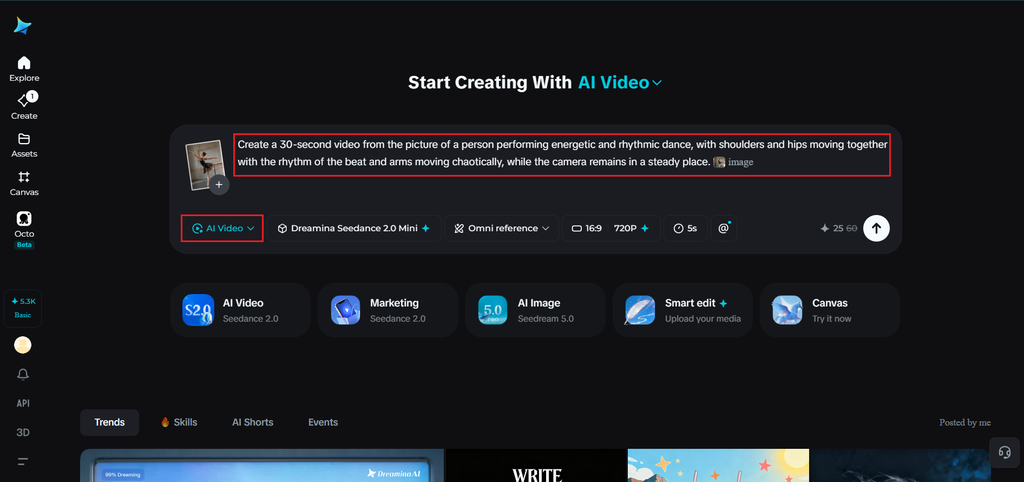
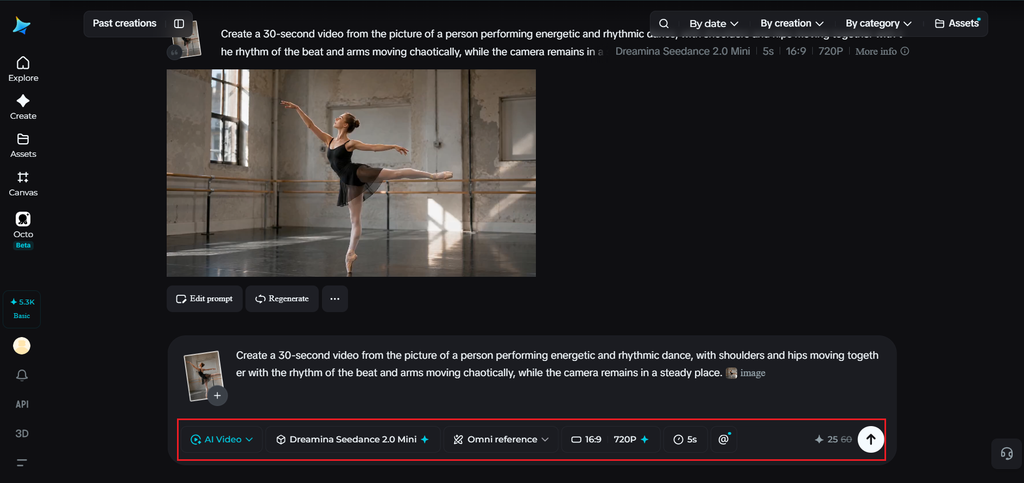
Step 1: Upload the image and create a prompt.
In order to create the video, visit Dreamina and log in. After that, go to the section called “AI Video.” Click on “Add reference image” to upload the selected image, and then add the text to create the prompt for the AI model.
In the prompt for a 30-second video, you could write: Create a 30-second video from the picture of a person performing energetic and rhythmic dance, with shoulders and hips moving together with the rhythm of the beat and arms moving chaotically, while the camera remains in a steady place.
Step 2: Create the dance video using Seedance 2.5
After uploading the picture and typing in the prompt, find the Seedance 2.5 model to use your image and prompt, and choose the Seedance 2.5 model for the generation. Next, choose the video length, then a suitable aspect ratio — pick 16:9 for YouTube or 9:16 for TikTok. Finally, click Dreamina’s icon and wait a few seconds for processing.
Step 3: Sync, polish, and share your dance clip
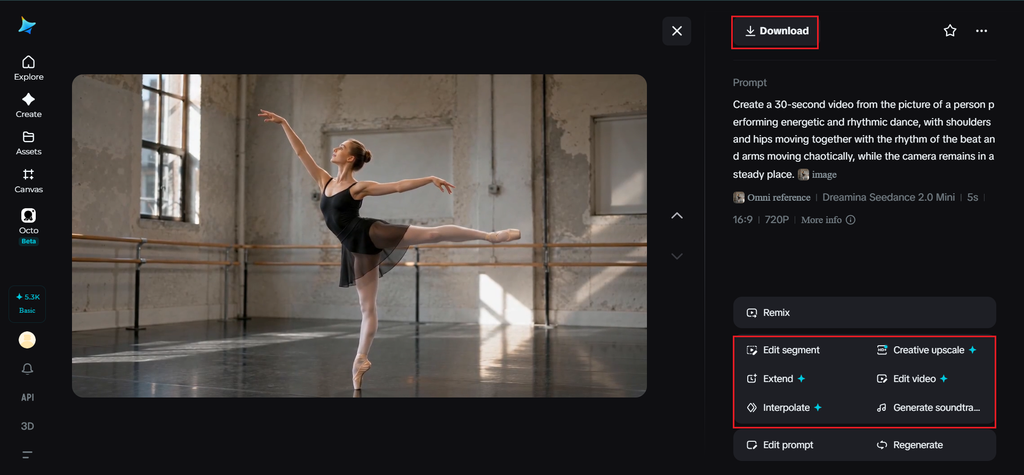
Polish your video before saving it with Dreamina’s AI editing tools. Use advanced AI tools like Upscale for higher resolution or Generate soundtrack for adding audio. Finally, export and share it on social media platforms.
Trying multiple dance styles from the same source photo
Since generation is fast, it’s worth testing a few different described dance styles from the same original photo before settling on a final version, comparing an energetic style against a smoother one to see which actually suits the subject best.
Choosing a dance style that matches the photo’s energy
Not every photo suits every dance style. A relaxed, casual photo might work better with a playful, low-key movement style, while a more dynamic pose already suggests something more energetic. Matching the described dance style to the subject’s apparent energy in the original photo tends to produce more believable results.
Seedance 2.5: The engine behind natural human motion
Reduced “AI look” for believable body movement
Human motion is one of the hardest things to generate convincingly, and Seedance 2.5 has significantly reduced the artificial, stiff quality that used to make generated dance movement look unnatural.
Extended clip length for a fuller routine
Native generation supports clips up to 30 seconds, with the “Ultra-long Video Generation (beta)” mode extending that range up to 180 seconds, giving enough room for a more complete dance sequence rather than a brief, looping motion.
Solving duplication in dynamic movement
The model addresses the “twin” issue that used to cause a single dancer to occasionally split into look-alike duplicates during fast, complex movement.
Precise local editing
Local editing allows small distractions in the frame, like a stray background object, to be removed without regenerating the entire dance clip.
Pairing the right music with the generated movement
Since the dance motion is generated independently of any actual audio track, choosing music that matches the implied tempo and energy of the movement afterward makes a significant difference in how convincing the final result feels once sound is added.
Creating a multi-style dance reel
A single dance clip is fun, but generating several different styles from the same photo, like a slow, smooth routine followed by a faster, punchier one, can turn one image into a varied reel that shows off multiple moods rather than just one.
Common mistakes when generating dance content
A few habits tend to weaken the final result:
- Describing overly complex, specific choreography that’s hard to interpret clearly
- Choosing a photo where the pose contradicts the intended energy of the dance
- Skipping music entirely, leaving an otherwise rhythmic clip feeling incomplete
Where these AI dance videos perform best
This format works especially well on TikTok, Instagram Reels, YouTube Shorts, and other platforms built around trending sounds and movement-based content, where a fun, rhythmic clip often performs just as well as one filmed with an actual camera.
Final thought
Dance content was always about energy and rhythm more than perfect technique. With Dreamina and the natural-motion precision behind Seedance 2.5, that energy can now come directly from a single still photo, letting anyone join in on the dance trend without ever needing to actually learn the moves themselves.